< async src="//pagead2.googlesyndication.com/pagead/js/adsbygoogle.js"">

Tuesday, January 28, 2014

A complete beginner’s guide to set up a raspberry pi media Centre and to play videos in HD

If you got a raspberry pi as a gift and is searching for a quick and powerful use of this wonderful little device, the best bet is to use it as a media center. There are several tutorials around and the purpose of this blog is to provide a quick and beginner friendly solution. Here is a short guide which comprehensively covers all the stuffs you need to do to get your pi in to life. I hope you got a box with an electronic board (The raspberry pi), an SD card and a couple of connectors and a power supply. In this tutorial, we convert Pi in to an Apple TV/Chrome cast like device and is capable of running an XBMC media center and provides a high definition video output in 1080p H.264 through its built in HDMI port. An overview of different possibilities with pi as a media center device is given in a previous post (Link).

Materials for Raspberry Pi XBMC


The basic set up needs a Raspberry Pi, An SD card, a power supply and an HDMI cable. If your TV set has a usb port, it may be possible to use it as a source for powering the raspberry pi and an Ethernet cable or a wifi adapter.

Additional items which can add bells and whistles to your set up includes: A case for your raspberry pi to keep it clean and protected, An infrared receiver (can be a bare 3$ IR sensor or can be an expensive and easy to set up usb infrared receiver like this (Flirc) one), A keyboard and a mouse (not really needed), A usb hub and an external usb hard disk drive (to store your videos), A TV head end, and a   usb sound card

An optional but useful thing is the additional codecs for MPEG-2 and VC-1 decoding which can be purchased for a small prize (here)

Power supply is very important (5V, at least 1Amp)


The RasPi needs a good power adapter which can provide sufficient current to keep the pi running. Check here for supported power adapter.  It should be noted that most of the problems like random rebooting’s and screen blanking on a pi is the result of a bad power adapter which provides insufficient amount of juice to the pi.

Getting the operating system and giving life to the Pi


The pi doesn’t have any operating system when we buy it. So we need to install one and don’t be panicked! It is easy as long as you can read English and click the mouse buttons. You need to ensure that you are using a good SD card to store the operating system. Check here for a supported SD card although most of the cards work fine.  So navigate your browser to Raspbmc website and get the operating system (here) and install it on the SD card. Insert the card and connect the hdmi cable to your TV and select the correct video input on your TV set. Now connect the power supply and Ethernet cable (or the Wi-Fi dongle)

A bit more on Raspbmc installer


It can be installed in to an SD card from a windows/Linux or Mac. Plug in the SD card in to your computer and remove all other usb devices. This is important because if you install the raspbmc on someother devices, you risk losing all the data stored on that device. Start the corresponding raspbmc installer for your operating system and select the SD card and follow the instructions to complete the installation.

First time boot of Raspberry Pi


At the first instance of the installation process, raspbmc will take some extra time (15-20minutes).  This is because it downloads the latest version of the software and installs it in to the Pi. So I would recommend using an Ethernet cable connected to the pi and the router , so that the pi can connect to the internet and download the necessary software’s. It is possible to use Wi-Fi, but I recommend to use it after the first boot with an Ethernet cable to make the process simple and easy for a beginner. Now once done, you have XBMC installed on the pi and running!!  To quickly explore these things, I would recommend to plug in a usb mouse and do a reboot. Now you can click on various menus and explore the media canter. But later I will explain how to use a remote control to navigate through the menus.  Plug in a usb stick with a mp4 video and try playing it to test it if you are new to xbmc. But there are lot more things which can be done and will explain soon. But up to here is the basic setup. If you are familiar with xbmc, you will know most of the things. For others, start exploring the plugins option over there and check out  the wide range of capabilities for instance you can start with YouTube plugin.

Remote controlling the raspbmc


Once your Raspbmc is up and running and if you have a smartphone/ android device, you can get rid of the mouse and start controlling the Pi with it. Search for Yatse xbmc remote and you will realize that it is very easy to set up and use the remote. It automatically finds your xbmc and enables remote control. You can also use an infrared remote with your Pi to make it easy (read more here). Other option is to use HDMI cec if your TV set support this. It enables you to use your TV remote to control the menus on raspbmc. Navigate to Raspbmc settings to explore other possibilities for instance to set up a wifi dongle or GPIO infrared remote. You can also enable other services like samba server (to access windows share), ftp etc.

Download As a PDF

Monday, January 27, 2014

raspberry pi google talk remote control- controlling a pi with google chat message and chat bot

raspberry pi google talk chat control
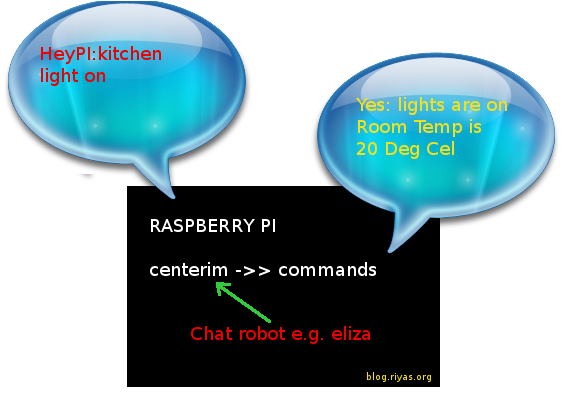
We use chat messages to communicate with our friends. Similarly we can use Google talk or other messengers like jabber/ aim /msn to control the Raspberry Pi. It is also possible to make it as an always on, automated chat robot which can respond to the commands. For instance it can respond with current room temperature, humidity or other sensor data. It is also possible to turn on lights , motors etc with a simple chat message!!

All these can be achieved with very minimal programming. There is a wonderful tool/application available on most of the linux distributions which can be used to perform the necessary commands via chat. It is called centerim. This is a command based chat program. To install this all you need to do is


sudo apt-get install centerim

Then start centerim by typing centerim

It can be configured for several chat services. For google talk the settings are as follows (choose jabber from the list)

jab_nick        [email protected]
jab_pass        yourPlaintextPassword
jab_server      talk.google.com:5223
jab_prio        4
jab_ssl         1
jab_status      o

For nerds the complete documentation can be accessed here

Achieve remote controle on the raspberry pi with chat

This is made possible via external actions in centerim. You need to edit and add your commands in the ~/.centerim/external file. Here is an example from centerim documentation which shows ls, free disk space and uptime. You can have your temperature reading script or the gpio controller to do the necessary actions!! To keep this program running all the time, a simple solution is to install screen.

sudo apt-get install screen 

Screen will keep your program running on the pi even after you disconnect your ssh! Now configure the ~/.centerim/external file and add the following (nano ~/.centerim/external ) Diverting the chat to a robot program like eliza can be used to make fun with your friends. Prefixing keyword with commands can be used to hide the control words. The possibilities are mind boggling and is left to readers imaginations. This post is just a pointer to the right direction !


%action         Remote control
event           msg
proto           all
status          all
options         stdin stdout

%exec
#!/bin/sh

case `cat` in
    ls) ls -l ~/.centerim/;;
    df) df -h;;
    uptime) uptime;;
esac

Sunday, January 26, 2014

Raspberry pi as a simple low cost rf signal generator [quick and dirty solutions]

Rspberry Pi RF Signal generator
A simple radio frequency signal generator is very useful for testing components, filters, receivers and other test systems in a wide range of applications. After the famous pifm project, which can generate an fm signal from the GPIO pins of raspberry pi, i cam across the following code which convert pi in to a simple portable signal generator.

It works by using the hardware on the raspberry pi that is actually meant to generate spread-spectrum clock signals on the GPIO pins. It should be kept in mind that the signal is a square wave with strong odd harmonics. However, this provides an easy and quick portable signal generator which can be controlled in software by a computer.

This radio frequency generator based on the Raspberry pi can be easily modified to generate a sweep signal or can be modified as a simple wobble generator for tuning bandpass filters, simple rf circuits e.t.c In addition it also also offers a wide frequency range from hf to vhf. It is possible to use this in conjunction with a simple sdr receiver like funcube dongle or an rtl sdr to build a poor mans spectrum analyser and sweep generator.

Any way there are limitations but this offers a simple and quick solution. Other possibilities based on the pi includes controlling a DDS module like AD9850 or Digital signal generators like Si570 to produce more cleaner signals.

To compile:

Save the source as  freq_pi.c

gcc -Wall -O4 -o freq_pi freq_pi.c -std=gnu99 -lm

To install:
cp freq_pi /usr/local/bin/

To run:
./freq_pi or  just freq_pi (after installing it to /usr/local/bin)

Source Code: freq_pi.c

/*
         This file is part of freq_pi Copyright (c) Jan Panteltje 2013-always
 email: [email protected]
                    
This code contains parts of code from Pifm.c 


Start GPL license:
    This program is free software; you can redistribute it and/or modify
    it under the terms of the GNU General Public License as published by
    the Free Software Foundation; either version 2 of the License, or
    (at your option) any later version.

    This program is distributed in the hope that it will be useful,
    but WITHOUT ANY WARRANTY; without even the implied warranty of
    MERCHANTABILITY or FITNESS FOR A PARTICULAR PURPOSE.  See the
    GNU General Public License for more details.

    You should have received a copy of the GNU General Public License
    along with this program; if not, write to the Free Software
    Foundation, Inc., 675 Mass Ave, Cambridge, MA 02139, USA.

If you take this code and port it to that Redmond crap you STILL must release SOURCE code,
this program has secret beyond bit level encrypted bits that make it traceable and you will be bitten by the FSF if you violate these terms.
*/

                       /* set TABs to 4 for correct formatting of this file, or if you do not know what that is replace all TABs with 4 spaces, else you cannot READ this */

/*
Program name:
fre_pi

Function:
programmable frequency generator on GPIO_4 pin 7


To compile:
gcc -Wall -O4 -o test test.c -std=gnu99 -lm


To install:
cp freq_pi /usr/local/bin/

To run:
freq_pi
*/

#define PROGRAM_VERSION "0.1"


#include <stdio.h>
#include <string.h>
#include <stdlib.h>
#include <dirent.h>
#include <math.h>
#include <fcntl.h>
#include <assert.h>
#include <malloc.h>
#include <sys/mman.h>
#include <sys/types.h>
#include <sys/stat.h>
#include <signal.h>
#include <unistd.h>
#include <getopt.h>
#include <stdint.h>
#include <time.h>
#include <getopt.h>
#include <ctype.h>
#include <errno.h>
#include <fcntl.h>


#define PAGE_SIZE (4*1024)
#define BLOCK_SIZE (4*1024)

int  mem_fd;
char *gpio_mem, *gpio_map;
char *spi0_mem, *spi0_map;


// I/O access
volatile unsigned *gpio;
volatile unsigned *allof7e;

// GPIO setup macros. Always use INP_GPIO(x) before using OUT_GPIO(x) or SET_GPIO_ALT(x,y)
#define INP_GPIO(g) *(gpio+((g)/10)) &= ~(7<<(((g)%10)*3))
#define OUT_GPIO(g) *(gpio+((g)/10)) |=  (1<<(((g)%10)*3))
#define SET_GPIO_ALT(g,a) *(gpio+(((g)/10))) |= (((a)<=3?(a)+4:(a)==4?3:2)<<(((g)%10)*3))

#define GPIO_SET *(gpio+7)  // sets   bits which are 1 ignores bits which are 0
#define GPIO_CLR *(gpio+10) // clears bits which are 1 ignores bits which are 0
#define GPIO_GET *(gpio+13)  // sets   bits which are 1 ignores bits which are 0

#define ACCESS(base) *(volatile int*)((int)allof7e+base-0x7e000000)
#define SETBIT(base, bit) ACCESS(base) |= 1<<bit
#define CLRBIT(base, bit) ACCESS(base) &= ~(1<<bit)

#define CM_GP0CTL (0x7e101070)
#define GPFSEL0 (0x7E200000)
#define CM_GP0DIV (0x7e101074)
#define CLKBASE (0x7E101000)
#define DMABASE (0x7E007000)
#define PWMBASE  (0x7e20C000) /* PWM controller */


struct GPCTL
{
char SRC         : 4;
char ENAB        : 1;
char KILL        : 1;
char             : 1;
char BUSY        : 1;
char FLIP        : 1;
char MASH        : 2;
unsigned int     : 13;
char PASSWD      : 8;
};


void getRealMemPage(void** vAddr, void** pAddr)
{
void* a = valloc(4096);
    
((int*)a)[0] = 1;  // use page to force allocation.
    
mlock(a, 4096);  // lock into ram.
    
*vAddr = a;  // yay - we know the virtual address
    
unsigned long long frameinfo;
    
int fp = open("/proc/self/pagemap", 'r');
lseek(fp, ((int)a)/4096*8, SEEK_SET);
read(fp, &frameinfo, sizeof(frameinfo));
    
*pAddr = (void*)((int)(frameinfo*4096));
}


void freeRealMemPage(void* vAddr)
{
munlock(vAddr, 4096);  // unlock ram.
    
free(vAddr);
}


void start_rf_output(int source)
{
/* open /dev/mem */
if ((mem_fd = open("/dev/mem", O_RDWR|O_SYNC) ) < 0)
    {
    printf("can't open /dev/mem \n");
    exit (-1);
    }
    
allof7e = (unsigned *)mmap( NULL, 0x01000000,  /*len */ PROT_READ|PROT_WRITE, MAP_SHARED, mem_fd, 0x20000000  /* base */ );

if ((int)allof7e==-1) exit(-1);

SETBIT(GPFSEL0 , 14);
CLRBIT(GPFSEL0 , 13);
CLRBIT(GPFSEL0 , 12);

/*
Clock source
0 = GND
1 = oscillator
2 = testdebug0
3 = testdebug1
4 = PLLA per
5 = PLLC per
6 = PLLD per
7 = HDMI auxiliary
8-15 = GND
*/

 
struct GPCTL setupword = {source/*SRC*/, 1, 0, 0, 0, 1,0x5a};

ACCESS(CM_GP0CTL) = *((int*)&setupword);
}


void modulate(int m)
{
ACCESS(CM_GP0DIV) = (0x5a << 24) + 0x4d72 + m;
}


struct CB
{
volatile unsigned int TI;
volatile unsigned int SOURCE_AD;
volatile unsigned int DEST_AD;
volatile unsigned int TXFR_LEN;
volatile unsigned int STRIDE;
volatile unsigned int NEXTCONBK;
volatile unsigned int RES1;
volatile unsigned int RES2;
};


struct DMAregs
{
volatile unsigned int CS;
volatile unsigned int CONBLK_AD;
volatile unsigned int TI;
volatile unsigned int SOURCE_AD;
volatile unsigned int DEST_AD;
volatile unsigned int TXFR_LEN;
volatile unsigned int STRIDE;
volatile unsigned int NEXTCONBK;
volatile unsigned int DEBUG;
};


struct PageInfo
{
void* p;  // physical address
void* v;   // virtual address
};


struct PageInfo constPage;   
struct PageInfo instrPage;
struct PageInfo instrs[1024];


void print_usage()
{
fprintf(stderr,\
"\nPanteltje freq_pi-%s\n\
Usage:\nfreq_pic -f frequency [-h]\n\
-f int        frequency to ouput on GPIO_4 pin 7.\n\
-h            help (this help).\n\
\n",\
PROGRAM_VERSION);
fprintf(stderr,\
"Example for 1 MHz:\n\
freq_pi -f 100000000\n\
\n"\
);

} /* end function print_usage */


int main(int argc, char **argv)
{
int a;
uint32_t frequency = 0; // -Wall
uint32_t ua;

/* defaults */


/* end defaults */


/* proces any command line arguments */
while(1)
    {
    a = getopt(argc, argv, "f:h");
    if(a == -1) break;

    switch(a)
        {
        case 'f':    // frequency
            a = atoi(optarg);


            frequency = a;
            break;
        case 'h': // help
            print_usage();
            exit(1);
            break;
            break;
        case -1:
            break;
        case '?':
            if (isprint(optopt) )
                 {
                 fprintf(stderr, "send_iq: unknown option `-%c'.\n", optopt);
                 }
            else
                {
                fprintf(stderr, "send_iq: unknown option character `\\x%x'.\n", optopt);
                }
            print_usage();

            exit(1);
            break;            
        default:
            print_usage();

            exit(1);
            break;
        }/* end switch a */
    }/* end while getopt() */


/* set frequeny */

/*
From ducument BCM2835-ARM-Peripherals.pdf
 page 105
   6.3 General Purpose GPIO Clocks


The General Purpose clocks can be output to GPIO pins.
They run from the peripherals clock sources and use clock generators with noise-shaping MASH dividers.
These allow the GPIO clocks to be used to drive audio devices.
The fractional divider operates by periodically dropping source clock pulses, therefore the output frequency will periodically switch between:
source_frequency / DIVI, and   source_frequency / (DIVI + 1)

Jitter is therefore reduced by increasing the source clock frequency.
In applications where jitter is a concern, the fastest available clock source should be used.
The General Purpose clocks have MASH noise-shaping dividers which push this fractional divider jitter out of the audio band.
MASH noise-shaping is incorporated to push the fractional divider jitter out of the audio band if required.
The MASH can be programmed for 1, 2 or 3-stage filtering. MASH filter, the frequency is spread around the requested frequency and the user must ensure that the module is not exposed to frequencies higher than 25MHz.
Also, the MASH filter imposes a low limit on the range of DIVI.
                                                                                                              
MASH           min DIVI min output freq       average output freq             max output freq
0 (int divide) 1        source / ( DIVI )     source / ( DIVI )               source / ( DIVI )
1              2        source / ( DIVI )     source / ( DIVI + DIVF / 1024 ) source / ( DIVI + 1 )
2              3        source / ( DIVI - 1 ) source / ( DIVI + DIVF / 1024 ) source / ( DIVI + 2 )
3              5        source / ( DIVI - 3 ) source / ( DIVI + DIVF / 1024 ) source / ( DIVI + 4 )
Table 6-32 Effect of MASH Filter on Frequency

The following example illustrates the spreading of output clock frequency resulting from the
use of the MASH filter. Note that the spread is greater for lower divisors.
                   PLL  target                          min    ave   max
                   freq   freq                          freq   freq  freq
                  (MHz) (MHz)  MASH  divisor DIVI DIVF (MHz)  (MHz) (MHz) error
                   650   18.32  0    35.480   35  492  18.57  18.57 18.57   ok
                   650   18.32  1    35.480   35  492  18.06  18.32 18.57   ok
                   650   18.32  2    35.480   35  492  17.57  18.32 19.12   ok
                   650   18.32  3    35.480   35  492  16.67  18.32 20.31   ok
                   400   18.32  0    21.834   21  854  19.05  19.05 19.05   ok
                   400   18.32  1    21.834   21  854  18.18  18.32 19.05   ok
                   400   18.32  2    21.834   21  854  17.39  18.32 20.00   ok
                   400   18.32  3    21.834   21  854  16.00  18.32 22.22   ok
                   200   18.32  0    10.917   10  939  20.00  20.00 20.00   ok
                   200   18.32  1    10.917   10  939  18.18  18.32 20.00   ok
                   200   18.32  2    10.917   10  939  16.67  18.32 22.22   ok
                   200   18.32  3    10.917   10  939  14.29  18.32 28.57 error
            Table 6-33 Example of Frequency Spread when using MASH Filtering


Operating Frequency
The maximum operating frequency of the General Purpose clocks is ~125MHz at 1.2V but this will be reduced if the GPIO pins are heavily loaded or have a capacitive load.


Register Definitions
    Clock Manager General Purpose Clocks Control (CM_GP0CTL, GP1CTL &
                                                 GP2CTL)
Address         0x 7e10 1070 CM_GP0CTL
                0x 7e10 1078 CM_GP1CTL
                0x 7e10 1080 CM_GP2CTL
            Bit      Field                                                            Read/
                                                   Description                              Reset
         Number     Name                                                              Write
          31-24    PASSWD    Clock Manager password "5a"                                W     0
          23-11        -     Unused                                                     R     0
           10-9     MASH     MASH control                                              R/W    0
                             0 = integer division
                             1 = 1-stage MASH (equivalent to non-MASH dividers)
                             2 = 2-stage MASH
                             3 = 3-stage MASH
                             To avoid lock-ups and glitches do not change this
                             control while BUSY=1 and do not change this control
                             at the same time as asserting ENAB.
             8       FLIP    Invert the clock generator output                         R/W    0
                             This is intended for use in test/debug only. Switching
                             this control will generate an edge on the clock
                             generator output. To avoid output glitches do not
                             switch this control while BUSY=1.
             7      BUSY     Clock generator is running                                 R     0
                             Indicates the clock generator is running. To avoid
                             glitches and lock-ups, clock sources and setups must
                             not be changed while this flag is set.
             6         -     Unused                                                     R     0
             5       KILL    Kill the clock generator                                  R/W    0
                             0 = no action
                             1 = stop and reset the clock generator
                             This is intended for test/debug only. Using this control
                             may cause a glitch on the clock generator output.
             4      ENAB     Enable the clock generator                                R/W    0
                             This requests the clock to start or stop without
                             glitches. The output clock will not stop immediately
                             because the cycle must be allowed to complete to
                             avoid glitches. The BUSY flag will go low when the
                             final cycle is completed.
            3-0      SRC     Clock source                                              R/W    0
                             0 = GND
                             1 = oscillator
                             2 = testdebug0
                             3 = testdebug1
                             4 = PLLA per
                             5 = PLLC per
                             6 = PLLD per
                             7 = HDMI auxiliary
                             8-15 = GND
                             To avoid lock-ups and glitches do not change this
                             control while BUSY=1 and do not change this control
                             at the same time as asserting ENAB.
06 February 2012 Broadcom Europe Ltd. 406 Science Park Milton Road Cambridge CB4 0WW              Page 107
                            2012 Broadcom Corporation. All rights reserved


 Clock Manager General Purpose Clock Divisors (CM_GP0DIV, CM_GP1DIV &
                                          CM_GP2DIV)
Address       0x 7e10 1074 CM_GP0DIV
              0x 7e10 107c CM_GP1DIV
              0x 7e10 1084 CM_GP2DIV
 
         Bit      Field                                                         Read/
                                                Description                           Reset
       Number    Name                                                           Write
        31-24   PASSWD    Clock Manager password "5a"                             W     0
        23-12     DIVI    Integer part of divisor                                R/W    0
                          This value has a minimum limit determined by the
                          MASH setting. See text for details. To avoid lock-ups
                          and glitches do not change this control while BUSY=1.
        11-0      DIVF    Fractional part of divisor                             R/W    0
                          To avoid lock-ups and glitches do not change this
                          control while BUSY=1.
                        Table 6-35 General Purpose Clock Divisors
*/


//struct GPCTL setupword = {6 /* clock source */, 1 /* enable */,  0 /* not kill */, 0 , 0, 1 /* 1 stage MASH (equivalent to no MASH */, 0x5a /* password */ };

//ACCESS(CM_GP0CTL) = *((int*)&setupword);


//ACCESS(CM_GP0DIV) = (0x5a << 24) + 0x4d72 + m

uint16_t divi; // integer part divider [23:12]        12 bits wide, max 4095
uint16_t divf; // fractional part divider [11:0]    12 bits wide, max 4095


/*
clock sources are 650 MHz, 400 MHz, and 200 MHz

So the lowest frequency we can make is 200,000,000 / 4095.4095 = 48,835.165323516 Hz 

But I get 61,043 Hz

4095.4095 * 61043 = 249,996,082.108499999 Hz....

But for MASH 1,
 MASH           min DIVI min output freq       average output freq             max output freq
 0 (int divide) 1        source / ( DIVI )     source / ( DIVI )               source / ( DIVI )
* 1              2        source / ( DIVI )     source / ( DIVI + DIVF / 1024 ) source / ( DIVI + 1 )
 2              3        source / ( DIVI - 1 ) source / ( DIVI + DIVF / 1024 ) source / ( DIVI + 2 )
 3              5        source / ( DIVI - 3 ) source / ( DIVI + DIVF / 1024 ) source / ( DIVI + 4 )

200,000,000 / (4095 = 48840.048840048
200,000,000 / (4095 + (4095/1024) ) = 48792.400011912


So 
61043  * 4099

61043 * (4095 + .3999023437) = 249995496.238766479 Hz, looks liike we have a 250 MHz clock.

Lowest frequency then is 61,043 Hz,
highest frequency then is 250,000,000 / 1 = 250,000,000 Hz
*/

//#define PLL0_FREQUENCY 250000000.0
#define PLL0_FREQUENCY 500000000.0

//if(frequency 

int clock_source;
/*
Clock source
0 = GND
1 = oscillator
2 = testdebug0
3 = testdebug1
4 = PLLA per
5 = PLLC per
6 = PLLD per
7 = HDMI auxiliary
8-15 = GND
*/

/* init hardware */

clock_source = 6; /* this GPIO_4 pin 7 allows only the 200 MHz clock????? as source, the other clock GPIO lines are not on a pin in revision 2 board, so we have to work with 200 MHz, and that seems to be 250 MHz */

start_rf_output(clock_source);

/* calculate divider */
double da; 

da = PLL0_FREQUENCY / (double) frequency;

divi = (int) da;
divf = 4096.0 *(da - (double)divi);

//fprintf(stderr, "frequency=%d da=%f divi=%d divf=%d\n", frequency, da, divi, divf);

if( (divi > 4095.0) || (divi < 1.0) )
    {
    fprintf(stderr, "freq_pi: requested frequency out of range, aborting.\n");

    exit(1);
    }


if(divf > 4095.0)
    {
    fprintf(stderr, "freq_pi: requested frequency out of range, aborting.\n");

    exit(1);
    }

ua = (0x5a << 24) + (divi << 12) + divf;

ACCESS(CM_GP0DIV) = ua;


//fprintf(stderr, "WAS here\n");

exit(0);
} /* end function  main */


An alternate solution for making cleaner signals for DIY project is with an arduino/pi and a DDS generator (e.g AD9850) You may be interested in reading more on it at here (Quickly test an AD9850 ebay module with an arduino and a software defined radio (SDR) [quick start for beginners])

Friday, January 24, 2014

Raspberry pi dropbox - manually and automatically backup raspbmc,xbmc,raspberry pi data to dropbox

Backup raspberry pi data to dropbox
Backing up data saves a lot of time and efforts. In this post i will show  a simple solution to manually backup the data from raspberry pi to a cloud storage service  drop-box and towards the end of this, i will explain about automatic backup to drop-box using a cronjob.

How it works:

In short it compress the data (in this example, i use .xbmc folder on raspbmc which allows easy restoration of all the xbmc settings in the event of an SD card crash on raspberry pi. This will happen automatically so that you will always have a backup to restore your xbmc. This can extended to any folder on raspberry pi or any other linux distros).

First you need to access the commandline (console) of your raspberry pi. This is done by ssh and you may need to use Putty, if you are on a windows computer.

Then type the following commands: (This will put necessary scripts on your raspberry pi)

wget https://github.com/riyas-org/raspbmcbackup/raw/master/raspbmc_backup.tar.gz

tar -xzvf raspbmc_backup.tar.gz

cd raspbmc_backup/

Now for the first time, you need to set up your drop-box so that it will let the updater script to upload the files in to your dropbox folder

So type /dropbox_uploader.sh  and follow the instructions. Basically it gives a link to dropbox so that you need to authorize it to upload files.

Once set you are done with it, you dont have to repeat it next time and can be scheduled to do the tasks automatically.

So when ever you need to backup your xbmc, just type ./backup.sh (after navigating to this /home/pi/raspbmc_backup folder. To restore an old copy , try ./restore.sh and follow the instructions.

To make the backup process in an automated fashion, we can use crontab (in raspbmc, enable it in the raspbmc settings)

Crash course on crontab:


The format of the crontab file is as follows.

{minute} {hour} {day-of-month} {month} {day-of-week} {path-to-shell-script}

So, to run each sunday at midnight : 0 0 * * 0

crontab -e

Then add the following line to the end of the file

# m h  dom mon dow   command
0 0 * * 0 /home/pi/raspbmc_backup/backup.sh

Git commands- The shortest and fastest guide to use Github from linux command line [30 seconds]

Github is very popular for managing and sharing source codes. Sometimes we need to use something in the shortest possible time frame and may end up with bloated , comprehensive guides which takes us in to deep frustrations. Here is a simple and quick way to start using github. It also explain the easiest way to upload files. Of course you can use a gui clientnbut i was so impatient to read the manuals and just want to use the command line version of git. [but it is easy to forgets those magic commands when you are not  a regular user]

Getting started with Git hub in 30 seconds! No bullshit quick-start

Fastest GitHub tutorial
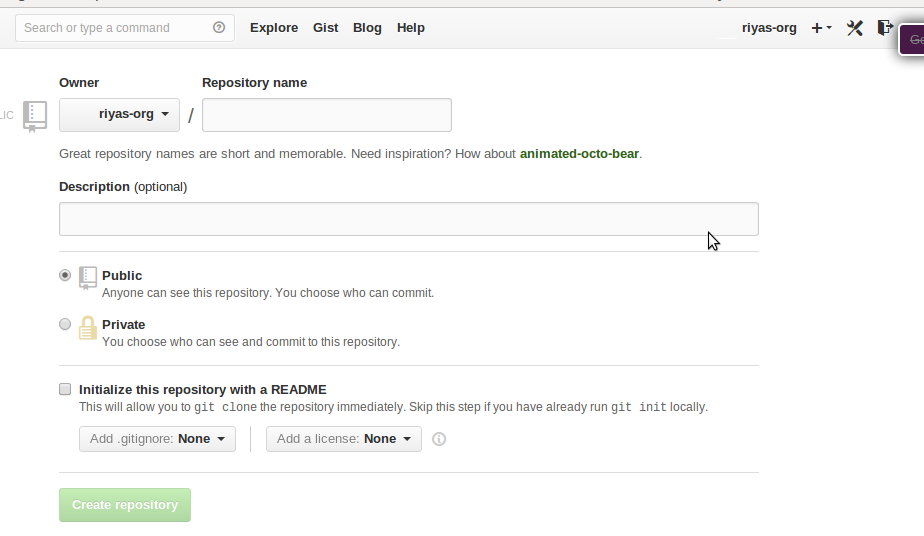
1) Go to github https://github.com/ create an account

2) Create a repository from the webinterface

3) Now you know the url for eg:https://github.com/riyas-org/sdr

4) Now you need to add your local files there [see the next step]

5) Make a local copy by:  git clone https://github.com/riyas-org/raspbmcbackup

6) Go to the local cloned directory Eg. cd raspbmcbackup

7) Put all files in this folder :)

8) Now to get these stuffs to the server [see the steps below]

9) Adding all these files:   git add *

10) Then type: git commit -m "Commit message"

11) Last magical command :  git push  (when asked input your email id as username and your Github password!

Creating a Repository from web:

Fastest GitHub tutorial

Wednesday, January 22, 2014

Controlling a AD9850/AD9851 dds module without using a microcontroller or PIC

AD9850 Pin connections
Direct digital synthesis of RF signals using a cheap AD9850 ebay module is getting very popular. These modules needs a 40 bit tuning/frequency (and phase) data which needs to be inputted in to the module by a microcontroller/PIC/Arduino. Often it is useful to run these cheap modules to replace Crystal oscillators and running at a fixed frequency. It is possible to achieve this with an inexpensive decade counter (4017) and a couple of electronic components. The  frequency setting is done with 4 DIP switches which can be used to set the 32bit frequency information by toggling the switches.  Go to http://designtools.analog.com/dtDDSWeb/dtDDSMain.aspx  to calculate the switch settings for the desired frequency

The original idea is from Han Summers, G0UPL

AD9850 - DDS without using a  microcontroller (click to see the full circuit)


Cool raspberry pi security system - A compilation of best DIY home security Projects using raspberry Pi

Raspberry pi security cam in a dummy box
Home security system can often save you a lot of money and headaches. But often people run without any security systems due to the prohibitive cost of installation and  maintanance. But here is a collection of simple solutions which uses a small, inexpensive (50$) solutions based on a Raspberry Pi.

Even though these are simple and do it your self solutions, if carefully made and set up, this can offer a wide variety of possibilities which can surpass many average, expensive systems available in the market. So do not under estimate the power of DIY, and if you are a good tinkerer, you will find a lot of possibilities which range from an intrusion detector to remote controlled systems with sms/telephone alert!

I won't recommend this for an average user who can't tweak much and have a lot of money as they can invest on a brand new ready made system and the money invested is worth if it can save the cost of heavy loss, but Pi based systems can work as an extra watch dog, even in such cases.

1) Logitech webcam/camera module with Raspberry Pi and motion detection

Compared to insecure CCTV cameras and expensive IP cameras (with poor video quality), raspberry pi could be an easy solution to build a high quality  video surveillence. It is possible to set up pi as a  24/7 Web cam server and stream your video over the internet and can monitor it with  a mobile device equipped with a
browser. using motion (an excellent linux program that monitors video signal for changes and triggers events) can help to take it further up. For example, you can tie it up with webbased sms services so that you will get a notification when something happens.

Here’s what you can achieve with a similar setup

2) PrivateEyePi - a DIY home alarm system

While considering raspberry pi based home security systems, PrivateEyePi is one of the best and comprehensive one. They have a couple of systems which can provide home alarm systems, webcam surveillance and temperature gauges and wireless sensors. The down side ( or could be the upside for some) that these are tied to the servers of the private eye. But the basic principles remains the same and can be adapted to run on your own servers if you are concerned on data. But it gives an easy customization, step by step solution with several possibilities

3) An other interesting post from TK's Maker Space

It uses a webcam, couple of sensors using 433mhz wireless and a python based backbone which communicate and integrate various components of the system with the web and the user More


4) Instructables user Scavix has system in which he shows off how to build your own small-scale system for about $120 using a Raspberry Pi which is featured in lifehacker.It uses a Raspberry Pi, the Raspberry Pi camera module, some housing for that camera, and a few other smaller pieces. After some set up, the end result is a home security system that can detect motion, broadcast a live stream, and more.

5)Christian Cawley has a similar system which uses webcam and the motion, an application which can trigger an event based on motion detection. More

6) Jeff has an interesting idea which he posted in makezine. He uses pi and a camera together with infrared motion detectors (PIR) and a couple of components to generate an audio and visual alert. An interesting home alarm project and more about his project.

7) Bart has posted a project where he used a couple of magnetic read switches and are tracked with python on the pi. It shows a log of various doors and their access timings.

8)Here is a post on codeproject which shows using Pi as a low cost high defenition surveillence camera and clever ways to mount the system.

Thursday, January 16, 2014

Raspberry Pi as a Northern light forcast device - PiAurora

Raspberry Pi as a Northern light forcast device - PiAurora

Aurora is a beautiful natural light display in the sky particularly in the high latitudes.It is caused by the collision of energetic charged particles with atoms in the high altitude atmosphere. The prediction of viewing aurora is based on Geomagnetic Activity-The Kp Index (you can read more here )

Based on the geo magnetic latitude,the Kp index should be above a certain value to view the aurora (apart from local weather conditions :) like clouds )
You can check the geo magnetic latitude and the minimum Kp value needed by clicking here (NOAA).

Current extent and position of the auroral oval can be viewed below

from http://www.swpc.noaa.gov/

Here is a simple Northern light (Aurora Borealis) warning (alert - if i miss it i feel bad so i wrote warning :)) device based on a Raspberry Pi. Basically it connects to noaa.org to get the Kp values and if the predicted value goes above a set limit, it powers on an led connected to the GPIO pin of the Raspberry Pi. To make it simple only one led is used with a green color ( i used one of the channel in an RGB module).

To give some visual effects 'like' the Aurora, a pulse width modulation is used with varying intensities. This is achieved by using the servoblaster project, which provides an efficient (DMA based) way to produce PWM with minimal cpu usage. I just placed a waterbottle in front of the led to get a nice visual effect!

The forcast on Pi works by a pythonscript which check the current kp value with the threshhold value and triggers the lights

See it in action below


Partial code which parse the kp value from noaa is given below. Linked it with servoblaster and used a cronjob to check the kp values every 30minutes/1hr. If you have any trouble in completing the stuff, post it as a comment. Until then the rest of the code is kept as an exercise to keep the interest on coding with pi and python :-)

#!/usr/bin/env python

import sys

import urllib

import re

import io    

from StringIO import StringIO

def getLine(data, line_no):

    buffer = StringIO(data)

    for i in range(line_no - 1):

        try:

            next(buffer)

        except StopIteration:

            return '' #Reached EOF


    try:

        return next(buffer)

    except StopIteration:

        return '' #Reached EOF


url = 'http://www.swpc.noaa.gov/wingkp/wingkp_list.txt'

u = urllib.urlopen(url)

txt = u.read()

u.close()

temp = StringIO(txt)

count_lines = len(temp.readlines())

lineE = getLine(txt,count_lines-1)

lineE.split()

elements=re.findall("[-+]?\d*\.\d+|\d+", lineE)

kp=elements[len( elements)-1]

print kp

Saturday, January 11, 2014

Raspberry pi htpc- a simple and affordable home theater projector computer

Raspberry pi is a small and affordable single board computer with a low power consumption. The high definition media output (via an HDMI) and the powerful gpu makes it a best and tweak-able gadget to use as an HTPC or a home theater projector computer.

Raspberry pi htpc- a simple and affordable home theater projector compute
Raspberry pi htpc- a simple and affordable home theater projector compute
To turn a raspberry pi to htpc, the easiest solution is to grab one of the XBMC distributions which are optimised to run on a pi. This can be done with raspbmc, or openELEC installations. If you use the hdmi output on the pi and hook up your audio system from the projector, it will work fine. An alternative and best solution is to use a usb sound card which provides better audio than the built in audio output on the pi. Look at Raspifi which also offers a good audio solution for the pi based htpc.

Installing OpenELEC for Raspberry Pi under Windows-for Newbies

OpenELEC is a very small and light weight distribution to play media files and watch internet TV on a raspberry pi. This helps to set up an xbmc on a raspberry pi with a small size (~90Mb!) and it boots very fast. So this is  agood option for those who use the Pi as an exclusive media Centre.

As many of you know, the Pi uses an SD card to boot and we need to install the operating system in it. As a totally new person to raspberrry pi, what you can do is, insert a blank, empty SD card in to your computer or Card reader and follow the following guide to install the operating system on the SD card. Then place this card in your raspberry pi (Insert the card with the golden connector on the card  facing upward- if you place your pi on a flat surface)

How to insert the SD card in to raspberry pi

Installing OpenElEC on Pi

1- Download the operating system from here and unzip it (right click on the downloaded file and chose extract here and you will see a new file ending with .img of 80-90Mb size)

2-Obtain the software called Win32disc imager from here

3- Install the .img file to sd card using Win32disc imager (see figure below)

4- Replace the sd card in Pi and connect the TV and power it up !!

5- If you face any issues or need a latest version [comment below] :)

Installing OpenELEC image to the SD card

Installing OpenELEC image to the SD card

Thursday, January 9, 2014

Raspberry pi ir blaster- Control your Infrared Devices from the Internet


Raspberry pi is a small device which can do a lot more with its GPIO pins and the internet connectivity. The low power consumption compared to a full blown desktop pc makes it as a good choice in many remote controlled home automation projects. As in aprevious post, the high definition media capability of pi offers a good opppurtunity to use it as a media player while doing the other stuffs.

Often it is convenient to control your devices with an infrared remote control, for example an HVAC system or an air conditioner to be turned on from a mobile phone while you are heading towards your home. It is also good to keep the room temperature optimal in winter while you are planning to return from your office.

My previous post on remote temperature monitoring can go to gether with this. raspberry pi can be used as an excellent internet controlled ir blaster or ir extender. An other scenerio is when you use an old system without hdmi cec and want to turn off your tv or the amplifier from the raspberry pi, an infrared emitter helps. It is also possible to set up a cronjob (a kind of timer) to send an infrared signal at a specified time to turn a device on or off.

There are two ways to do this. First one is a bit expensive, easy and less fun. There are ready made modules which can be plugged in to the usb port of the pi/ addon boards to GPIO and the work is half done. But here am going to do it from scratch. The basics of all remote control is an infrared led which switches on and off in a specific sequence (at the same time the led has a high frequency flashing at 38KHZ so that the tv set / devices know that the ir is coming from a remote and not any noice)

So we need

  • IR LED (TSAL5300), All leds works, Choose one with 940nm peak wavelength.
  • NPN transistor (e.g. 2N2222 or BC548) 
  • Resistor (10Kilo ohm and one 330 ohm) 


Software: I used raspbmc which has lirc in its latest kernels (See more at http://aron.ws/projects/lirc_rpi/)

The gpio ir driver has 5 parameters: debug, gpio_out_pin, gpio_in_pin, sense, softcarrier.

The default gpio input pin (PIN12 - GPIO18) is used when no input pin is specified as a parameter. The default gpio output pin for transmission is PIN11 - GPIO17.

Be careful with gpio pins as wrong connection can permanently damage your pi. Have a look at here to understand how the pins are placed. !!WARNING GPIO PINS ARE NOT 5V TOLERANT!!
Settings:

1) Enable the kernel modules for gpio infrared control

 in /etc/modules

lirc_dev
lirc_rpi gpio_in_pin=23 gpio_out_pin=22 

In /etc/lirc/hardware.conf

########################################################
# /etc/lirc/hardware.conf
#
# Arguments which will be used when launching lircd
LIRCD_ARGS="--uinput"

# Don't start lircmd even if there seems to be a good config file
# START_LIRCMD=false

# Don't start irexec, even if a good config file seems to exist.
# START_IREXEC=false

# Try to load appropriate kernel modules
LOAD_MODULES=true

# Run "lircd --driver=help" for a list of supported drivers.
DRIVER="default"
# usually /dev/lirc0 is the correct setting for systems using udev
DEVICE="/dev/lirc0"
MODULES="lirc_rpi"

# Default configuration files for your hardware if any
LIRCD_CONF=""
LIRCMD_CONF=""
########################################################

More about setting up IR receiver with lirc was discussed before. Same tactics are used to create and record the infrared signals from HVAC or other devices. In short create the lirc config files and map the buttons. The shortest explanation is irrecord command and check the previous post for more details.

Hardware Connections


once you make a config file using irrecord and saved/added it to /etc/lirc/lircd.conf, These commands can be send to the IR led by the following routines

# List all of the commands that LIRC knows for 'myremote'
irsend LIST myremote ""

# Send the KEY_POWER command once
irsend SEND_ONCE myremote KEY_POWER

and check for the device getting powered on /off. More on linking to the web interface in next post